Figma Variable Font Scaling Guide: How to Test Accessible Type Systems Before Development
Learn how to use Figma variables to test font scaling, improve accessibility, and avoid typography choices that hurt readability and conversions.
Free tool
Grade your website before you keep reading
Most readers want a quick benchmark first. Start with the free Website Grader, then come back to this article with a clearer sense of what to fix.
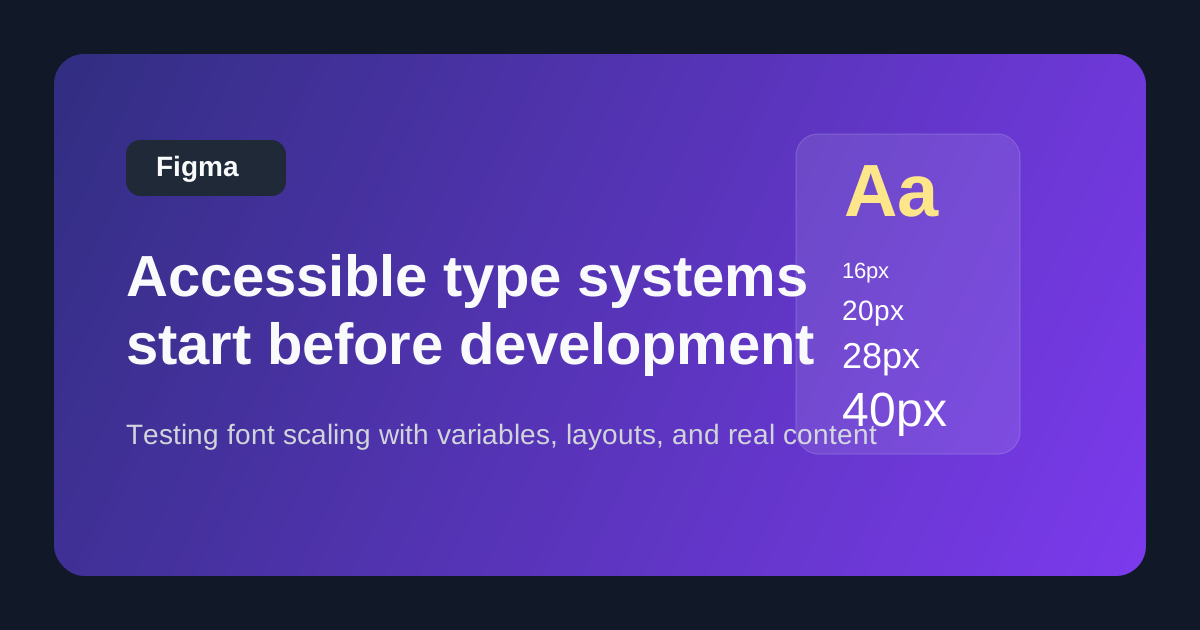
# Figma Variable Font Scaling Guide: How to Test Accessible Type Systems Before Development
A lot of accessibility issues start earlier than teams think. They do not begin in QA. They do not begin in code review. They begin when someone chooses a beautiful type scale that looks perfect on a large desktop artboard and quietly fails everywhere else.
That is why more designers are paying attention to **font scaling in Figma variables**. The long-tail keyword for this article is **how to test font scaling for accessibility with Figma variables**.
If you run a redesign, build landing pages, or manage a design system, this matters for more than compliance. Typography affects readability, confidence, scroll depth, and conversion. When users have to zoom, squint, or work too hard to distinguish hierarchy, your content performs worse.
This guide explains why scalable typography matters, how Figma variables fit into the workflow, and what business teams should test before handing designs to development.
Why font scaling is suddenly a bigger topic
Accessibility conversations in 2026 are moving away from checkbox fixes and toward system-level design decisions. Typography is a perfect example.
A site can technically pass basic contrast checks and still feel hard to read because:
Those are not rare edge cases. They show up constantly on service sites, SaaS dashboards, ecommerce interfaces, and marketing pages.
The reason Figma variables matter is simple: they let design teams model typography as a system instead of a one-off style sheet.
What Figma variables help you test
Figma variables make it easier to define reusable values for things like font size, spacing, and layout behavior across multiple modes or breakpoints.
For typography, that means you can test how a design behaves when text scales across contexts instead of manually updating dozens of components.
That helps teams answer better questions earlier, such as:
Those are accessibility questions, but they are also UX and CRO questions.
Why typography affects conversions more than most teams realize
When people talk about conversion optimization, they often focus on offer structure, CTA color, or form length. Those things matter. But if users struggle to read and process the page, the rest of the funnel gets weaker.
Typography influences:
For a small business website, readability is often a trust signal. Clean, comfortable typography makes the business feel more competent and easier to buy from.
What to test before development starts
1. Default reading size on mobile
Many marketing sites still treat mobile typography like a shrunk version of desktop. That usually creates body copy that is technically visible but not comfortably readable.
In Figma, test your body styles on realistic mobile widths, not just clean mockups. Ask:
If the answer feels marginal in design, it will feel worse on a real device.
2. Zoom and text expansion scenarios
Accessible typography is not only about the default view. People increase text size. Browsers zoom. Operating systems apply user preferences.
Use variables to stress-test larger text modes and look for:
A page that only works at the designer’s ideal setting is fragile.
3. Heading hierarchy under pressure
A common design-system problem is hierarchy that looks elegant at one breakpoint and muddy at another. If H2s, H3s, and body text lose their distinction when the scale shifts, comprehension suffers.
Your design should still communicate:
That is essential for scannability and for assistive technology users navigating heading structures.
4. Component resilience
Typography does not live in isolation. It lives inside cards, nav menus, testimonials, pricing tables, accordions, and forms.
Use Figma variables to test whether components can survive larger text without breaking the experience. This is where many polished mockups fall apart.
Pricing cards are a classic example. The type scale looks balanced until plan names wrap, feature lists grow, or legal microcopy expands. Suddenly the “best plan” layout no longer works.
A practical workflow for teams
You do not need a massive enterprise design system to benefit from this approach.
A practical workflow looks like this:
Define semantic type tokens
Instead of naming styles only by appearance, define them by role.
Examples:
This makes decisions easier later because you are designing for function, not just aesthetics.
Create variable modes for key contexts
Depending on your setup, that may include:
The goal is not endless complexity. The goal is to expose weak spots before they become code.
Test real content, not placeholder copy
Lorem ipsum hides problems. Real headlines, real pricing labels, real FAQs, and real button text expose them.
If you want a design to survive production, it needs to handle realistic content length.
Review with accessibility and engineering in mind
Ask both of these questions:
A scalable type system should help development, not create a giant exception list.
Mistakes to avoid
Chasing ultra-minimal typography
Tiny text can look premium in screenshots and feel terrible in real use. If your design relies on users having perfect vision, high concentration, and no time pressure, it is not robust.
Overusing fixed sizes
Rigid type values often create brittle layouts. Variable-based systems make it easier to adapt across devices and user needs.
Treating accessibility as a final audit
By the time a typography issue reaches QA, fixing it is slower and more expensive. It can also trigger component rework across the site.
Ignoring business-critical pages
Typography testing should happen first on:
These are the pages where readability directly affects revenue.
How this supports SEO too
Better typography does not directly improve rankings in the way title tags or internal links do. But it does support the behavioral side of content performance.
Readable pages tend to produce:
Those outcomes make your site more effective overall, which strengthens the value of the traffic you earn.
Final thought
Accessible typography is one of the clearest examples of how good UX compounds. It helps people read faster, understand more, trust the page sooner, and complete actions with less friction.
Figma variables will not solve that on their own. But they give teams a much better way to test typography like a system instead of decorating screens and hoping it holds up later.
If your site is due for a redesign, this is a smart place to get ahead of problems before development starts.
Related articles
Turn this article into a real benchmark
Start with the free Website Grader for an instant score, then move to the full AI scan when you want page-level recommendations.
Open the Free Website Grader →